Systeme.io Automation Rules - Rules vs Workflows and 10 Recipes (2026)
Systeme.io Automation Rules: The Short Answer
Systeme.io gives you two ways to automate your business. Automation rules are simple "when this happens, do that" instructions, such as "when someone subscribes through this form, add a tag and start the welcome emails." Workflows are visual, multi-step automations with delays, conditions and branches.
Both run on the same contact database as your funnels, emails, courses and checkout. That's the big advantage: a purchase, a course enrollment or a form signup can trigger the next step instantly, without connecting separate apps.
Start with rules for simple jobs like tagging and enrolling. Move to workflows when you need timing or logic, such as "wait three days, then check whether they bought."
Automation Rules vs Workflows
| Automation rules | Workflows | |
|---|---|---|
| Structure | One trigger, one or more actions | Multiple steps in a visual builder |
| Timing | Actions happen immediately | Delays and waits between steps |
| Logic | No branching | Conditions and branches |
| Best for | Tagging, enrolling, starting campaigns | Full customer journeys, reminders, onboarding |
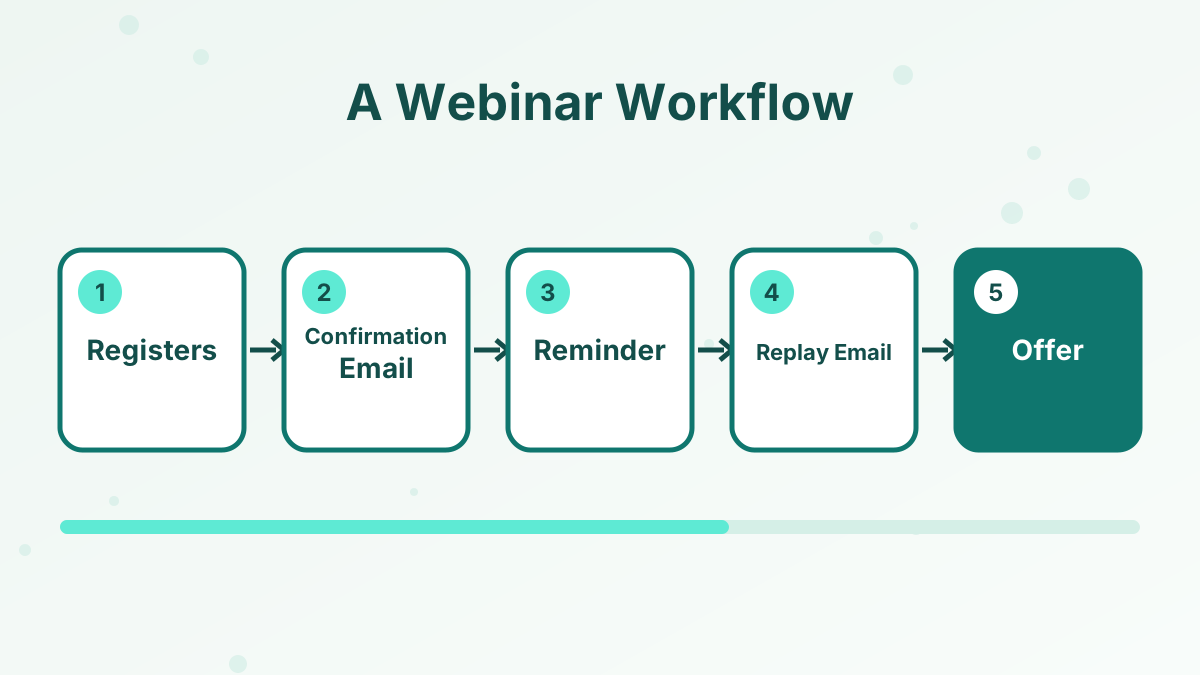
| Example | On purchase, enroll in course | Webinar signup, then reminders, then replay, then offer |
Many businesses use both. Rules handle the instant admin, and workflows handle the journeys that unfold over days.
Common Triggers and Actions
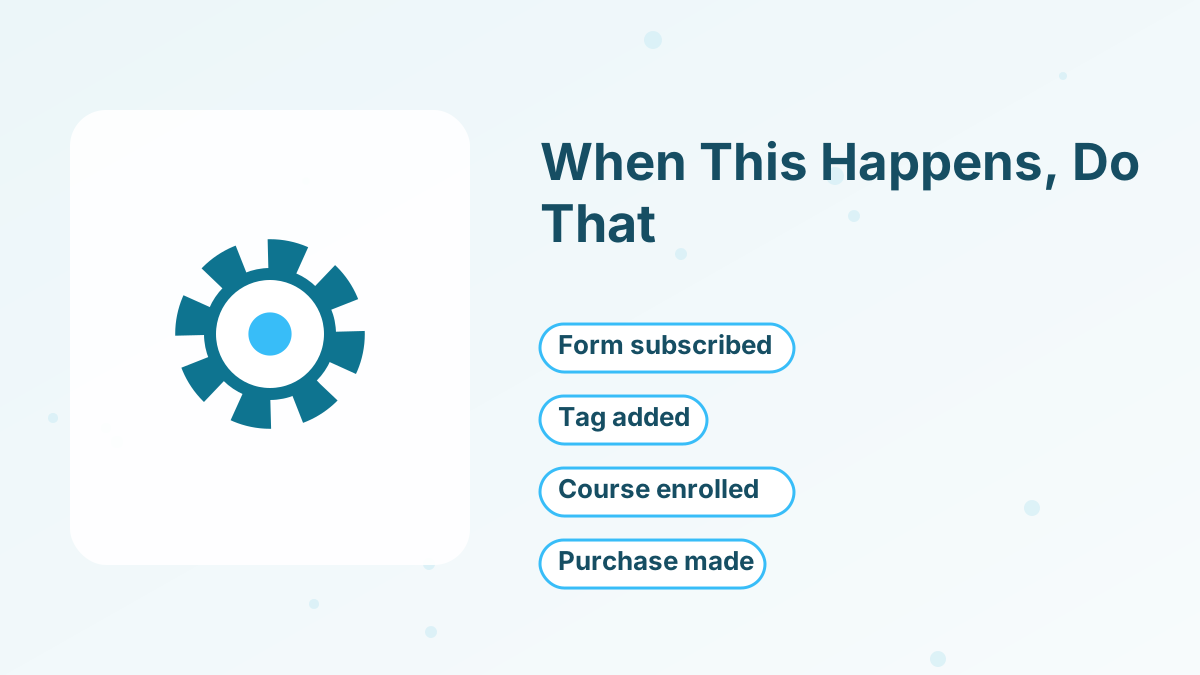
Triggers are the events that start an automation. Actions are what systeme.io does in response. Here are the ones most businesses use:
| Common triggers | Common actions |
|---|---|
| A contact subscribes through a funnel form | Add or remove a tag |
| A tag is added to a contact | Subscribe to or unsubscribe from an email campaign |
| A contact is enrolled in a course or community | Send an email |
| A contact completes a course | Enroll in a course or community |
| A product is purchased | Revoke course or community access |
| A checkout is abandoned (in workflows) | Send a webhook to another app |
The exact list in your account may include more options, and systeme.io adds triggers and actions over time. Workflows also add steps such as delays and conditions.
How to Create an Automation Rule
Automation rules are found in the automation section of your account, and you can also add them from a funnel step's settings.
- Choose the triggerFor example, "funnel step form subscribed," then pick the specific funnel step.
- Add the actionFor example, "add tag" and choose the "checklist-lead" tag.
- Add a second action if neededFor example, "subscribe to campaign" and choose your welcome sequence.
- Save and testSign up through the form with a test email and check that the tag appears and the first email arrives.
Keep rule names descriptive, like "Checklist opt-in: tag + welcome sequence," so you can find them later.
How to Build a Workflow
Workflows use a visual builder where you add steps one after another.
- Set the starting triggerChoose what enters contacts into the workflow, such as a webinar registration.
- Add actions and delaysSend a confirmation email, wait until one day before the webinar, send a reminder.
- Add conditionsCheck whether the contact attended or bought, and send different follow-ups to each group.
- End cleanlyRemove temporary tags or move buyers into an onboarding sequence.
- Activate and monitorTurn the workflow on and watch the first few contacts move through it.
If you also want text reminders, workflows can send SMS through a Twilio connection. See systeme.io SMS marketing.
Ten Automation Recipes You Can Copy
These are practical automations we'd set up in most small online businesses. Rules cover the simple ones; workflows cover the ones with timing.
- Lead Magnet Delivery
On form subscribed, add a lead tag and start the welcome campaign.
- Buyer Tagging
On purchase, add a "customer" tag so you can segment future emails.
- Stop Selling to Buyers
On purchase, unsubscribe the contact from the sales campaign for that product.
- Course Enrollment
On purchase, enroll the buyer in the matching course.
- Course Completion Follow-Up
On course completed, send a congratulations email and invite them to your next offer.
- Webinar Reminders
A workflow with confirmation, reminder and replay emails timed around the webinar.
- Abandoned Checkout Follow-Up
When someone abandons checkout, send a friendly reminder email or text.
- Module Completion Encouragement
When a student finishes a module, send a quick note pointing to the next lesson.
- Affiliate Onboarding
When someone joins your affiliate program, send them promotion tips and resources.
- Access Removal on Cancellation
When a subscription ends, revoke course or community access.
Recipes 2 and 3 are the ones beginners most often forget. Without them, buyers keep receiving "buy now" emails for something they already own, which looks careless.
How Automations Fit Into a Real Funnel
It helps to see the pieces working together. Here's how automation might run behind a simple course funnel, from first visit to finished course:
| Moment | What the contact does | What the automation does |
|---|---|---|
| Opt-in | Downloads a free checklist | Adds "lead-checklist" tag, starts welcome campaign |
| Nurture | Reads the welcome emails | Campaign sends lessons, then the course offer |
| Purchase | Buys the course | Adds "customer-course" tag, enrolls in course, stops sales emails |
| Abandon | Leaves checkout without paying | Workflow sends a reminder email after a delay |
| Learning | Finishes module 1 | Sends encouragement and the next lesson link |
| Completion | Finishes the course | Sends congratulations and an invitation to the next offer |
Without automation, each of those moments would need you to notice and act by hand. With it, every contact gets the right message at the right time, even while you're asleep.
Organizing Tags So Automations Stay Simple
Tags are the glue between your automations, so a little structure pays off. We'd use a simple prefix system:
- lead- for how someone joined, such as "lead-checklist" or "lead-webinar."
- customer- for what they bought, such as "customer-course-a."
- interest- for topics they care about, such as "interest-email-marketing."
- status- for temporary states, such as "status-in-launch."
Remove temporary tags when they're no longer needed, and avoid near-duplicates like "customer" and "customers." Clean tags make it easy to build segments for newsletters later. Our email list segmentation guide shows how to use them.
Automation Limits by Plan
The number of automation rules you can create depends on your plan. The free plan includes one automation rule, higher paid plans raise the limit, and the Unlimited plan gives you unlimited automation rules.
With one rule on the free plan, choose the action that matters most for your customers, usually enrolling buyers in the course or tagging them. When you need a second rule, the $17 Startup plan is the usual next step. See our systeme.io pricing guide for the full comparison.
Automation Mistakes to Avoid
Overlapping automations. Two rules that both start the same campaign can send duplicate emails. Check existing rules before adding new ones.
Untested paths. Always run a test contact through every rule and workflow, including the "didn't buy" branches.
Tag chaos. Use a simple naming system, such as "lead-checklist," "customer-course-a" and "interest-email," so tags stay readable.
Forgetting to switch workflows on. A workflow that's built but not activated does nothing. Double-check the status after editing.
Automating before you understand the journey. Sketch the customer journey on paper first. Automation should follow a plan, not replace one.
For the bigger picture, read our guides to email automation workflows and marketing automation for small businesses.
Automate Your First Funnel for Free
Set up your first automation rule on the free plan, then add workflows as your business grows.
Try Systeme.io FreeSysteme.io Automation Rules FAQs
How many automation rules do you get on the free plan?
The free plan includes one automation rule. Paid plans raise the limit, and the Unlimited plan has no cap on rules.
What's the difference between a rule and a workflow?
A rule is one trigger with instant actions. A workflow is a multi-step journey with delays, conditions and branches.
Can systeme.io automations connect to other apps?
Yes. You can send webhooks from automations, and you can connect other apps through Zapier or the API.
Can automations remove course access?
Yes. You can revoke access to a course or community, for example when a subscription is cancelled.